Choice Grid: Complete User Guide
The Choice Grid turns a list of choice options into a set of face-down cards. You choose a card, it flips over, and the hidden choice is revealed. You can use the first card as the answer, work through the deck until the last card, stop after a specific number of reveals, or manually declare the most recently revealed card as the final selection. The grid opens by default with a sampling of yes/no type variations. You are able to enter choices manually or load a pre-defined choice list.
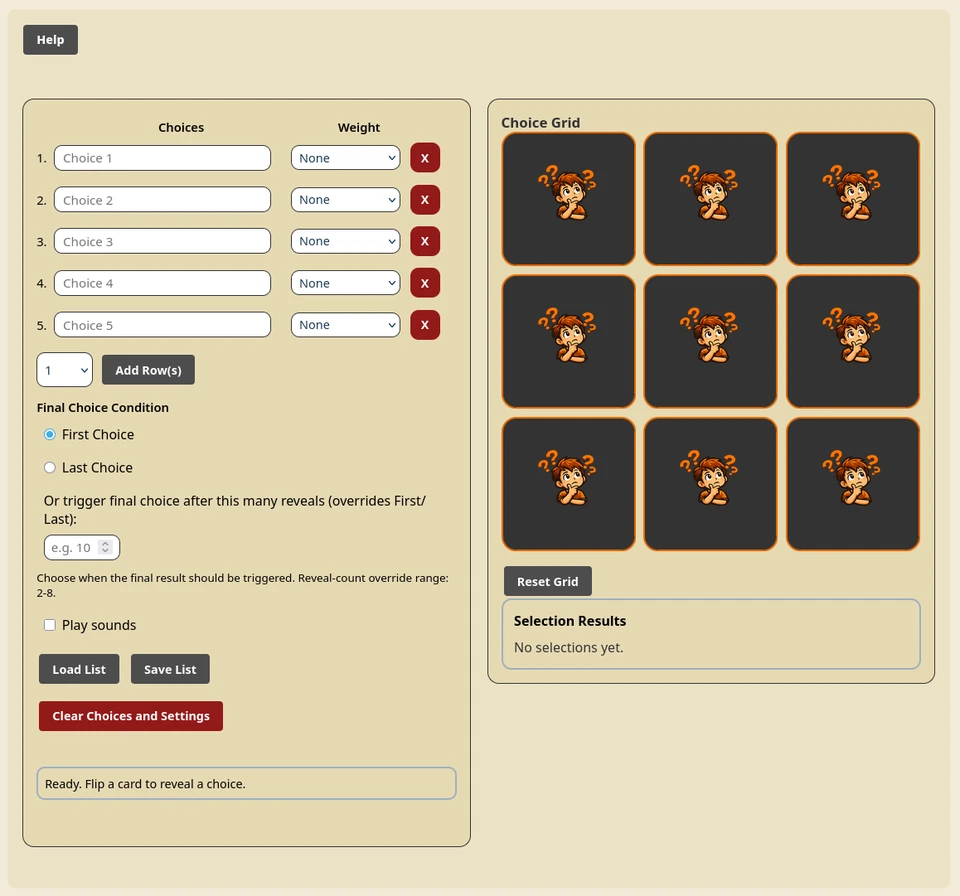
Getting oriented
The screen has two main areas:
- The Choices panel contains the numbered choice rows, weight menus, final-choice rules, sound option, list file tools, and clear button.
- The Choice Grid panel contains the face-down cards, round controls, and Selection Results list.
On wider screens the panels appear side by side. On smaller screens they stack, and the card grid changes from three or four columns to two columns so it remains touch-friendly.
The bordered status area near the bottom of the controls tells you what just happened. It reports resets, reveals, progress, imports, saves, errors, and the final result.
Try a simple round
- Type your choice options into the numbered Choices rows. Blank rows are ignored.
- Leave every weight at None for an unweighted round.
- Select First Choice under Final Choice Condition.
- Choose any face-down card in the grid.
- The card flips over, the choice is added to Selection Results, and that first reveal is announced as the final selection in a modal result window.
- Click the Reset Grid button in the result window to create a fresh shuffled grid, or select Close if you want to inspect the completed grid first.
The result window can also be closed by selecting the shaded background or pressing Escape. Confetti appears whenever a final result is triggered.
Creating and editing choices
Type one choice into each numbered text field. The grid updates immediately, so you do not need a Save or Apply button. Leading and trailing spaces are removed when choices are used; blank rows do not create cards.
Click the Add Row(s) to append an empty row. The tool supports up to 100 rows and reports when that limit is reached. To add more than 1 row at a time you can set the dropdown next to the Add Row(s) button to one of the other counts. To remove a row you can click on the red X button on each row of choices. Since empty choice rows are ignored, you can also just leave an empty row blank and it will not be included in the grid.
Every edit to choice text and every weight change starts a new round immediately. All revealed cards and the Selection Results history are cleared, and the remaining choices are reshuffled. Finish a round before editing if you need to preserve what has already been revealed.
Built-in choices
When all rows are genuinely empty, the tool uses a built in list of choices that are YES/NO/MAYBE variations just to build out a grid by default. Once any value is entered in a choice field, the default values are removed.
Duplicate choices
Duplicates are allowed. Each row becomes its own card, even when several rows contain the same text. Selection Results records each reveal separately in reveal order, so duplicate text may appear more than once.
How card randomization and weights work
The weight menu beside a choice controls how likely that choice is to be placed early in a newly shuffled grid:
| Menu label | Numeric weight | Relative priority |
|---|---|---|
| None | 1 | One share |
| Low | 2 | Two shares |
| Medium | 3 | Three shares |
| High | 4 | Four shares |
| Maximum | 5 | Five shares |
For the first position in a fresh grid, a choice's probability is its weight divided by the total of all weights. After placing that choice, the tool removes it and performs another weighted selection for the next position. It continues until every choice has been placed exactly once.
This is important: weight does not create extra copies, and it does not let one choice appear multiple times unless you entered duplicate rows. Every active row still has exactly one card. A higher weight simply makes that choice more likely to be behind an earlier card position during the weighted shuffle.
For example, if Apple has Maximum (5) and Banana has None (1), Apple has a 5/6 chance of occupying the first shuffled position and Banana has a 1/6 chance. Which position you select matters: repeatedly choosing the same first card position gives higher-weight choices their strongest advantage. If you freely select arbitrary positions, the practical effect of weighting depends on which positions you choose.
Weights are whole values from 1 through 5. Imported missing or invalid weights become 1; values below 1 are raised to 1, and values above 5 are reduced to 5.
Choosing the final-choice rule
The final-choice rule determines when the final selection result modal, confetti, and optional win sound be triggered. The tool checks the rule immediately after every reveal.
First Choice
Choose First Choice when the first card you reveal should be the final answer. The result window opens immediately after that card flips.
This is the quickest mode and works well when you want one random prompt or winner per round.
Last Choice
Choose Last Choice when you want to reveal the whole deck and make the final remaining card reveal the winner. Intermediate cards flip normally and are listed in Selection Results. The result window opens only when the last card has been revealed.
In this mode, Choose Previous As Final is visible. It is disabled until you reveal at least one card, then becomes available. Select it at any point to stop early and declare the most recently revealed choice as final.
Final after a specific number of reveals
The field labeled Or trigger final choice after this many reveals lets you end the round at an exact reveal number. Entering a valid number overrides the selected First Choice or Last Choice radio option.
The allowed range is 2 through one less than the number of cards. With eight cards, for example, the field accepts 2 through 7. The hint below the field displays the current range. At least three choices are required; with fewer than three cards, the field is disabled.
When you enter a number, non-digit characters are removed, input is limited to four digits, and the value is immediately clamped into the valid range. For example, entering 1 when the allowed range is 2-7 becomes 2, while entering 20 becomes 7. Because each input change resets the grid, set this option before revealing cards.
The choice exposed on the specified reveal becomes final. If the override is 4, the fourth card you flip is the final result. Progress messages show both the number revealed and the final trigger, such as Progress 3/8. Final at 4.
Choose Previous As Final is also visible in this mode. After at least one reveal, you can use it to declare the most recently revealed choice final before reaching the configured count.
Clear the reveal-count field to return control to First Choice or Last Choice. Selecting either radio option also clears the count override. Any of these changes resets and reshuffles the grid.
Revealing cards and reading results
Choose a face-down card to flip it. A revealed card is disabled and cannot be selected again during that round. Its complete value is appended to Selection Results in chronological reveal order rather than sorted or summarized.
Long choice text wraps on the card and is limited to the number of lines that fit at the current card size. It may be visually clipped on a small card, but the full text remains available in the underlying choice and result list.
Before the first reveal, the results area says No selections yet. The status area reports the latest choice and, in Last Choice or count-override mode, the round's progress.
Once a final result has been triggered, Choose Previous As Final is disabled. Closing the result window does not reset the cards or history. Use Reset Grid, use Reset Choices Grid in the result window, or select an unrevealed card after closing the final window to start a fresh round. Selecting that unrevealed card performs the reset; it does not also reveal a card in the new round.
Resetting the grid
The Reset Grid button creates a new weighted shuffle from the current active choices. It turns every card face down, clears Selection Results, clears the previous/final choice state, and leaves your choices and settings intact.
Reset Choices Grid in the result window does the same thing after closing the window. Resetting can produce a different card placement each time because the weighted ordering is randomized anew.
Changing a choice, changing a weight, adding or removing a row, changing the final condition, entering or clearing a reveal count, or loading a list also resets the round automatically.
Sounds and visual effects
Turn on Play sounds to hear a card-flip sound on each reveal and a win sound when a final result is announced. If the main card-flip audio cannot play, the tool attempts to use a click sound instead. Browser audio permissions and device mute settings can still prevent sound without affecting card behavior.
Loading choices from a file
To create your own list of choices, enter one choice per line and save the list with the .txt or .list extension. Select Load List and choose a .txt or .list plain-text file. A valid import replaces all current choice rows, keeps at most the first 100 valid choices, saves them in the browser, and starts a new shuffled round. It does not ask for confirmation.
For equal weights, put one choice on each line:
Apple
Banana
Cherry
To create lists with weights, separate the choice and numeric weight with two semicolons:
Apple ;; 5
Banana ;; 1
Cherry ;; 3

Valid weights are integer values 1 through 5.
Blank lines are ignored. Only the first ;; on a line is treated as the separator. Text before it is the choice, and text after it is parsed as the weight. A line with no choice before the separator is ignored. A line without ;; receives weight 1.
Comma-based formats such as 5,Apple are not supported; use Choice ;; Weight. If the file contains no valid nonblank choices, the existing list remains unchanged and the status area reports that no valid choices were found.
Saving choices to a file
Select Save List to open the Save List dialog:
- Yes saves the current list with each line in
Choice ;; Weightformat. - No saves the current list with one choice per line and no weights. Loading that version later assigns every choice weight 1.
- Cancel, the shaded background, or
Escapestops the operation.
The suggested filename is choice-grid-words.txt. A supported browser may open a Save As file picker. Otherwise, the tool asks for a filename and starts a normal text-file download. If saving fails or permission is denied, the status area reports the problem.
Only nonblank user-entered rows are exported, up to 100 choices. If the blank rows are currently using the built-in defaults, those fallback choices are not included, so the resulting file can be empty. The final-choice rule, reveal-count override, sound setting, card order, revealed results, and visual configuration are not written to the list file.
Automatic browser saving
The tool automatically stores the following in a cookie for roughly one year:
- Choice rows and their weights, up to 100 rows
- First Choice or Last Choice selection
- A valid reveal-count override
- Play sounds preference
This data belongs to the current browser/profile and site. It does not synchronize between devices. Private browsing, cookie blocking, or clearing site data can prevent or remove it.
The current weighted card order, revealed cards, Selection Results, previous choice, and completed final result are not persisted. Reloading the page creates a newly shuffled round from the saved list and settings.
Clearing choices and settings
Select Clear Choices and Settings to delete the saved cookie and immediately restore:
- Five blank input rows with weight 1
- First Choice mode
- No reveal-count override
- Sounds off
- An empty reveal history and a fresh grid
There is no confirmation dialog. Because the rows become blank, the eight built-in choices are used again when the default list is available.
Help, keyboard use, and accessibility
Select Help for a short in-app summary. Close Help or the result window with its button, by selecting the shaded background, or with Escape. Escape also cancels the Save List question. Focus moves into opened dialogs and returns to the control that opened them when they close.
Choices, weights, final conditions, cards, and actions use standard keyboard-operable form controls and buttons. Use Tab or Shift+Tab to move through controls, then the normal keyboard activation key to flip a focused card. Cards have numbered accessible labels, and status, grid, and result changes use live regions for assistive technology.
There is no dedicated keyboard shortcut for revealing a card, no multi-select operation, and no undo command.
Practical examples
For one quick final selection, enter the choices, select First Choice, and always select the first card position. Add weights if some prompts should be more likely.
For an elimination-style suspense activity, select Last Choice and reveal cards one by one. The final card revealed becomes the answer. If you want to stop early, select Choose Previous As Final after the desired reveal.
For a three-stage reveal, enter at least four choices and set the reveal-count override to 3. The first two cards become ordinary results and the third becomes final.
For a reusable weighted list, save with weights included. Loading that file later restores the choice values and weights, but produces a newly randomized grid.