Coin Flip: Complete User Guide
The Coin-Flip tool is a fun way to make decisions when weighing two or more desirable outcomes. The Coin Flip tool has two modes:
- Standard mode for repeated heads/tails flips with or without choices assigned.
- Elimination mode for tournament-style elimination across a larger queue of choices.
The tool lets you select from different coin types and either enter lists of choices or load choices from curated choice lists or from an existing local text file.
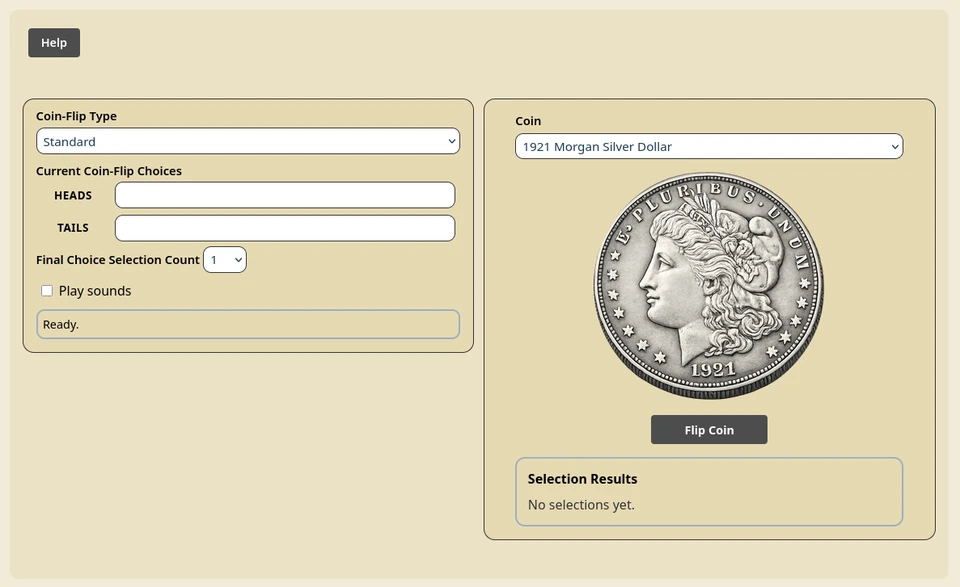
Standard Mode Quick Start
- Make sure Standard is selected in the Coin-Flip Type dropdown
- Click on the Flip Coin button
- A modal will display with the HEADS/TAILS result. The Selection Results area on the coin panel will also show the results. Click the Close button on the modal.
- Enter choices in the two Current Coin-Flip Choices input fields to assign a value to Heads and Tails.
- Click Flip Coin.
- The modal is displayed again and this time displays which side of the coin was selected and what choice was assigned to that side of the coin. Click the Close button on the modal.
- Change the Final Choice Selection Count to 3. Notice this clears the Selection Results, but leaves the assigned Current Coin-Flip Choices.
- Click the Flip Coin button.
- Notice the flip results are shown in the Selection Results messages but the modal is not displayed. Also notice that the status area at the bottom of the choices panel shows a progress message with an indiciation of which side of the coin has an incremented value.
- Keep clicking on Flip Coin until one side of the coin has been selected 3 times. Notice with each coin flip the Selection Results and progress status messages keep track of the flip results.
- When one side of the coin has been selected 3 times (the value set in the Final Choice Selection Count dropdown), the choice selection modal will display along with a special effect (Confetti) to indicate the final selection has occurred.
- NOTE: Clicking on Flip Coin again will reset the results and start a new round but will keep the existing assigned choices.
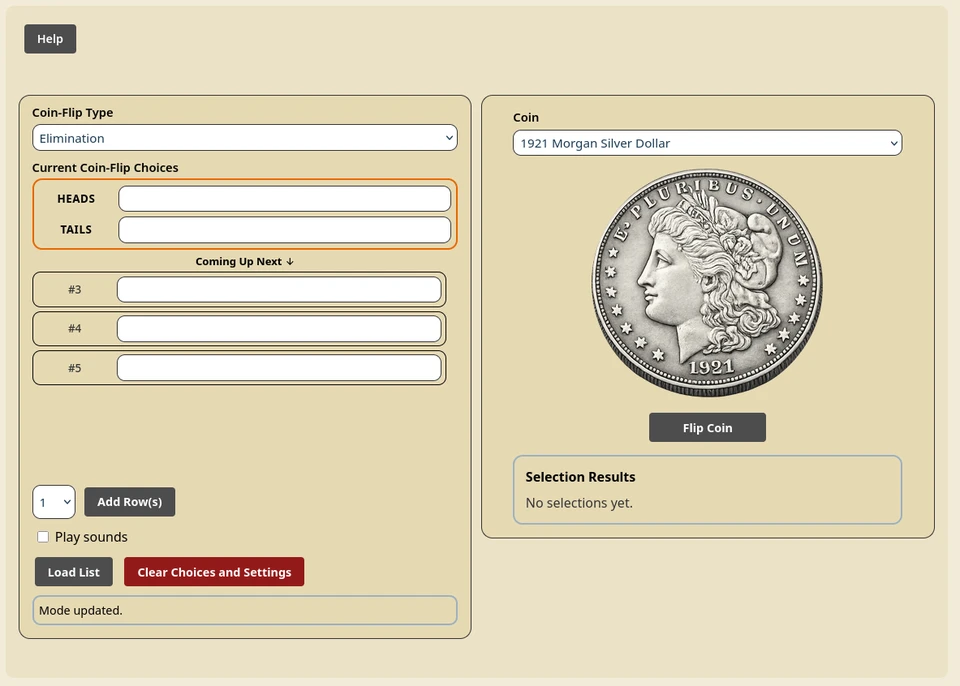
Elimination Mode Quick Start
- Reload the Coin-Flip tool page to ensure the default state is displayed
- Select Elimination from the Coin-Flip Type dropdown
- Elimination mode requires at least two choices to be assigned.
- Enter choices in each of the default 5 choice input fields.
- Click Flip Coin.
- The first round will only evaluate the 2 choices in the Current Coin-Flip Choices area. The 3 choices from the "Coming Up Next" list are given a bye. There will always be some BYE choices unless the toal number of choices is a factor of 2 (e.g. 2, 4, 8, 16, 32, 64). This ensures the final round will contain at least 2 choices.
- An End Of Round modal is displayed. It shows which choices were winners in the round. Choices that were eliminated are displayed in the Selection Results messages under the coin image.
- Click the Next Round button. The choices panel refreshes with the winner(s) from the previous round, plus the choices that were given a BYE. From this point until the completion of all rounds there will be no more BYE choices.
- Click on Flip Coin again. The eliminated choice will be shown in the Selection Results. The next two choices from the Coming Up Next input fields are moved to the Current Coin-Flip Choices. The winner is not displayed, but will be shown on the End Of Round modal dialog and will be available in the next round.
- Click on the Flip Coin button again.
- Assuming you started with the original 5 choices, an End Of Round modal will display announcing the end of the 2nd round and showing the winners from the round.
- Click the Next Round button
- At this point there should only be the final two choices. Click the Flip Coin button.
- The Selected Choice modal will display the final choice winner and special effects (Confetti) will be displayed to indicate the final choice has been made.
- In order to restore the list of choices and start again, click on the Flip Again button. Otherwise click on the Close button.
- NOTE: If you click the Close button and then decide you want to restart the elimination rounds, you can click on the Flip Coin button.
Layout Overview
At the top of the tool is a Help button which opens a quick help modal.
The tool has two main panels. The first (Choices) panel shows the Coin-Flip Type, the choice input fields, options and a status area. The options depend on the Coin-Flip Type.
Standard Coin-Flip Type Options
- Final Choice Selection Count - Changes behavior to require the winning side to be selected NN times
- Play Sounds - Determines whether sounds are played when a coin is flipped or final selection is made.
Elimination Coin-Flip Type Options
- Add Row(s) - Adds the number of rows selected from the dropdown to the left of the button
- Play Sounds - Determines whether sounds are played when a coin is flipped or final selection is made.
- Load List - Allows you to load a list of choices from a text file on your machine. The list should contain one choice per row. If the list contains weights as used by the picker-wheel tool, the we
- Clear Choices And Settings - Reverts back to the Standard Coin-Flip Type and sets all options back to default.
The choices panel also contains a status area that displays a variety of messages related to changes in the choice states (e.g. initial state, rows added, choices selected as byes, choice progress, etc).
The second panel allows the user to choose a Coin Type and initiate coin flips by clicking the Flip Coin button. The second panel also has a Selection Results area that displays which choices were selected or eliminated (eliminations only display for the Elimination Coin-Flip Type).
Curated Choice Lists
The Choice-List tool has a number of curated choice lists organized into categories and tags (e.g. Sports, Careers, Geography) that can be selected via links on the Coin-Flip tool page. Alternatively you can load your own list. The Coin-Flip tool supports uploading text files (.txt extension) with one choice per line. Use the Load List button to browse for your own list.
When selecting a curated choice-list :
- The curated choices are injected into the choices input fields automatically.
- Tool mode auto-switches to Elimination if the imported list has more than 2 items.
- Imported entries are trimmed and capped at 100.
- Once an elimination round has started, you are not able to edit or add choices until the round is completed (Though attempting to add rows will prompt you to confirm the choices will first revert to their initial state).
Status Messages You May See
Typical informational messages:
- Ready.
- Mode updated.
- Added X rows.
- Loaded X choices.
- Round 1 Byes are shown. Flip starts in 2 seconds.
- Round {NN} Complete.
- Round {NN} ready.
- Flipped X of Y required flips.
- {ChoiceName} was eliminated.
- {WinnerName} was selected.
- Saved choices and settings cleared.
Typical warnings/errors:
- Elimination mode requires at least two non-empty choices.
- Row limit reached (100).
- Unable to load file.
- Coin assets are unavailable. Falling back to the default coin.
- Selected coin image is unavailable. Falling back to the default coin.