Picker-Wheel: Complete User Guide
The Picker Wheel is a fun and quick way to make a decision. You can type in a list of choices or select from pre-defined lists of choices. The tool also allows you to add weights in order to give some options better odds than others. The default mode is to select a final choice after one spin of the wheel however you can also choose to make the final selection only after a choice has been selected a pre-determined number of times.
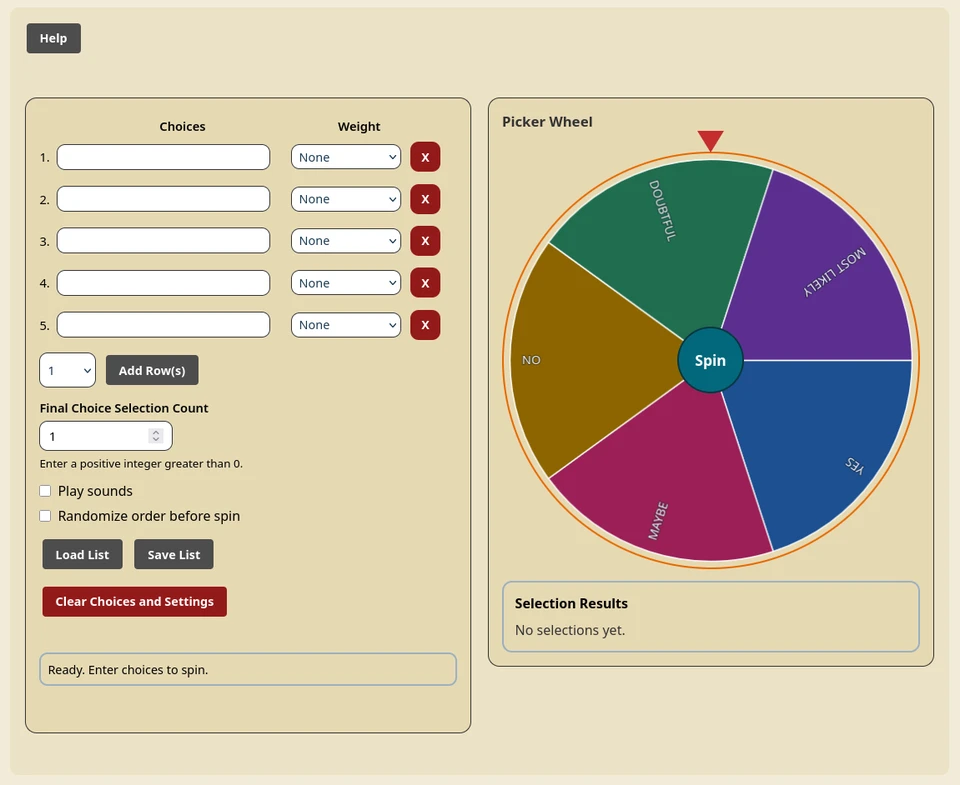
Getting oriented
The screen has two main areas:
- The Choices panel is where you enter choices, assign weights, add or remove rows, choose a final selection count, turn options on or off, and load or save lists.
- The Picker Wheel panel shows the wheel, the Spin button, the fixed red pointer at the top, and the Selection Results tally.
On a wide screen these areas appear side by side. On a smaller screen they stack so that the controls and wheel remain usable without a desktop computer.
There is also a Help button at the top. It opens a short in-app reminder. Close that window with its Close button, by selecting the shaded background, or by pressing Escape.
Your first spin
- Enter your choice options in the numbered choice rows with the options you want to use. Blank rows are ignored.
- Leave each choice's weight set to None if every choice should have the same chance.
- Leave Final Choice Selection Count at
1if you want a winner after every spin. - Select Spin in the center of the wheel.
- Wait for the wheel to stop. The red pointer at the top indicates the selected slice, and the winning choice appears in a result window.
- Select Spin Again to close the result and immediately start another spin, or select Close to return without spinning.
The result window can also be closed by selecting the shaded area around it or pressing the ESCAPE key on your keyboard.
If you have not entered any choices and have not previously saved choices in this browser, the wheel uses a default of YES/NO variants. As soon as you enter a nonblank choice, your own list replaces those defaults. If a row contains only spaces, the tool does not fall back to the built-in list; remove those spaces to restore it.
Creating and editing the list
Type directly into any numbered row. The wheel redraws immediately while you edit. Leading and trailing spaces are removed when a choice is used, but spaces inside a choice are preserved. Each text field accepts up to 120 characters. Long labels may be shortened with ... on the wheel so that they fit, but the complete text is still used in results and saved files.
Click on Add Row(s) to append an empty row. If you want to add more than 1 row, first select a number from the dropdown to the left of the Add Row(s) button, then click Add Row(s). You can have up to 100 rows; when you reach that limit, the status message says at the bottom of the panel will indicate you have reached the limit.
Blank rows do not become wheel slices. If every row is unusable and the built-in defaults are not active, selecting Spin produces an “Enter at least one non-empty choice” message instead of starting the wheel.
You are able to remove choices by clicking on the red X buttons to the right of each row, or you can just clear the text to remove the choice from the wheel. rearrange choices, edit the row values or save and reload a reordered text list.
Duplicate names
Duplicate choice text is allowed, and every duplicate is a separate wheel entry with its own weight. However, Selection Results groups entries by their displayed text. For example, two rows both named Alex contribute to the same Alex total. In first-to-a-target play, those duplicate entries also advance the same shared total.
Understanding weights
The menu beside each choice controls its relative chance of being selected:
| Menu label | Numeric weight | Relative chance |
|---|---|---|
| None | 1 | One slice |
| Low | 2 | Two slices |
| Medium | 3 | Three slices |
| High | 4 | Four slices |
| Maximum | 5 | Five slices |
The probability for a choice is its weight divided by the sum of all active weights. For example, if Apple has Maximum (5) and Banana has None (1), Apple has a 5/6 chance and Banana has a 1/6 chance on each spin. Weights have a greater chance of affecting outcome when there are not many choices to select from. For instance a weight of Maximum has a 5 in 6 chance of selecting the winning choice when there are only two choices, but will only become 5 in 14 chance when there are 10 choices and 5 in 24 when there are 20 choices.
Weights affect the random selection, but they do not change slice size. Every active entry is drawn as an equal-sized slice. The tool chooses a result using the weights first, then animates the wheel so that the chosen slice finishes under the pointer.
Weights are limited to choosing from the predefined weight labels.
Choosing how a winner is decided
Final Choice Selection Count controls when the large winner window appears.
Winner on every spin
Set the count to 1 (Which is the default) for the simplest mode. Every completed spin opens the result window, plays the win condition special effects, and shows the selected choice. The tally from that spin remains visible until you start the next spin. Starting that next spin clears the previous tally and begins a new round.
First choice to several selections
Set the FINAL CHOICE SELECTION COUNT input field to a whole number greater than 1 to require choices to be selected multiple times in order to be the final choice selected. For example, enter 3 to make the first choice that is selected three times the final winner.
After each spin, the status area reports that choice's progress, such as 2/3, and Selection Results keeps a running count for every choice. The large result window does not appear on intermediate spins. When one choice reaches the target, the result window opens and announces it as the selected choice, with confetti.
After a final winner is found, the completed round stays on screen while you close the window and review it. The tally resets when you start the next spin, whether you use Spin Again or close the window and later select Spin.
Reading Selection Results
Before the first spin, Selection Results says No selections yet. Each completed spin adds one to the selected choice. Results are sorted by highest count first; ties are sorted alphabetically. The list uses time for one selection and times for multiple selections.
The tally is session data rather than saved data. It is not restored after a page reload, and it is not included in exported lists. Editing ordinary choices also does not generally clear an existing tally, so finish or reset a round before changing participants if you do not want old and new choices shown together. Clear Choices and Settings clears the tally immediately.
Optional spin settings
Play sounds
Turn on Play sounds to hear clicks as the pointer crosses slice boundaries and a win sound when the result window opens. The setting is remembered in this browser. Browser audio permissions or muted device settings may prevent sound; the wheel still works normally without it.
Confetti is shown whenever the large result window opens, regardless of whether sounds are enabled. That means confetti appears after every spin when the target is 1, or only when the final target is reached when it is greater than 1.
Randomize order before spin
Turn on Randomize order before spin to shuffle the order of the active choices each time a spin begins. This changes where choices appear around the wheel, but it does not replace the weighted random selection or change any weights.
For a user-entered list, the shuffled order is placed back into the rows and remembered, so you will see the new order after the spin. When this option is off, choices remain in their current order.
What happens during a spin
Once you select Spin, the button is temporarily disabled so that a second spin cannot interrupt the first. A spin lasts randomly between about 5 and 10 seconds and makes between 6 and 11 full turns before slowing smoothly to a stop. The final slice always aligns with the fixed pointer at the top.
The wheel uses a five-color repeating palette, automatically chooses readable light or dark label text, and redraws itself for the current screen size and display resolution. Slice colors are automatic and cannot be edited in this version of the tool.
Loading a list from a file
Select Load List, then choose a .txt plain-text file. Loading a valid file replaces all current choice rows immediately, retains up to the first 100 valid choices, redraws the wheel, and saves the imported choices in the browser. It does not ask for confirmation, and it does not reset the existing result tally. However once a list is loaded and the Spin button is pressed, then any previous selections are cleared if they are not in the current list.
The simplest format is one choice per line:
Apple
Banana
Cherry
Blank lines are ignored. To include weights, put two semicolons between the choice and its numeric weight:
Apple ;; 5
Banana ;; 1
Cherry ;; 3
Only the first ;; on a line is treated as the separator. Text before it is the choice; text after it is read as the weight. A line with no choice before the separator is ignored. Lines without ;; receive weight 1. This tool does not parse comma-separated weights such as 5,Apple; use the Choice ;; Weight form instead.
If the file has no valid nonblank choices, the current list is left alone and the status area reports No valid choices found in file.
Saving a list to a file
Select Save List and choose one of the following in the prompt:
- Yes saves each nonblank choice as
Choice ;; Weight. - No saves only one choice per line. If you load that file later, every choice will use weight 1.
- Cancel, selecting the shaded background, or pressing
Escapestops the save.
The suggested filename is picker-wheel-words.txt. Depending on your browser, you may see a normal Save As dialog, a request to choose a directory and name the file, or a filename prompt followed by a download. If the browser denies file permission, the status area reports that the file could not be saved.
Only nonblank user-entered rows are exported, up to 100 choices. The built-in/default fallback is not exported while the rows are blank. Results, the final selection count, sound preference, and randomize preference are not included in the file. Only the choices and optionally the weights are saved.
Automatic saving and clearing your data
The tool automatically stores these items in a browser cookie whenever you change them:
- Choice text and weights, up to 100 rows
- Final Choice Selection Count
- Play sounds preference
- Randomize order before spin preference
The cookie is set for roughly one year on this site. It is local to the current browser/profile and site, so it does not synchronize to another device or browser. Private-browsing rules, cookie blocking, or clearing site data may prevent or remove it.
Spin history, selection totals, the current wheel rotation, and a completed winner are not persisted across page loads.
Select Clear Choices and Settings to delete the saved cookie and immediately restore five blank rows, weight 1, target count 1, sounds off, randomization off, an empty result tally, and the wheel's starting position. There is no confirmation dialog. Once the blank rows are restored, the built-in YES/NO choices appear again when the default list is available.
Status messages
The bordered status area below the controls tells you what the tool just did. It reports events such as a row being added or removed, a list being loaded or saved, a spin being in progress, the latest selection and target progress, validation errors, and the final winner. If something seems not to have happened, check this area first.
Keyboard and accessibility notes
All main controls are standard links, buttons, text fields, select menus, and checkboxes, so you can reach and operate them with normal keyboard navigation. Choice fields and weight menus have numbered accessible labels, status and result changes are announced through live regions, and modal windows move focus to a useful control when opened.
Press Escape to close the currently open Help or result window, or to cancel the Save List question. After a modal closes, focus returns to the control that opened it. The wheel itself is represented as an image for assistive technology; the result and status text provide the meaningful outcome.
There is no dedicated keyboard shortcut for spinning in this version. Tab to the center Spin button and activate it with the usual keyboard submit button command.